PlayMark
Film the game. Tap the stats as they happen. Walk out of the gym with every clip you care about, a highlight reel ready to post, and your player's season numbers up to date.
iPhone and iPad · Mac and Windows for keeping your whole season in one place
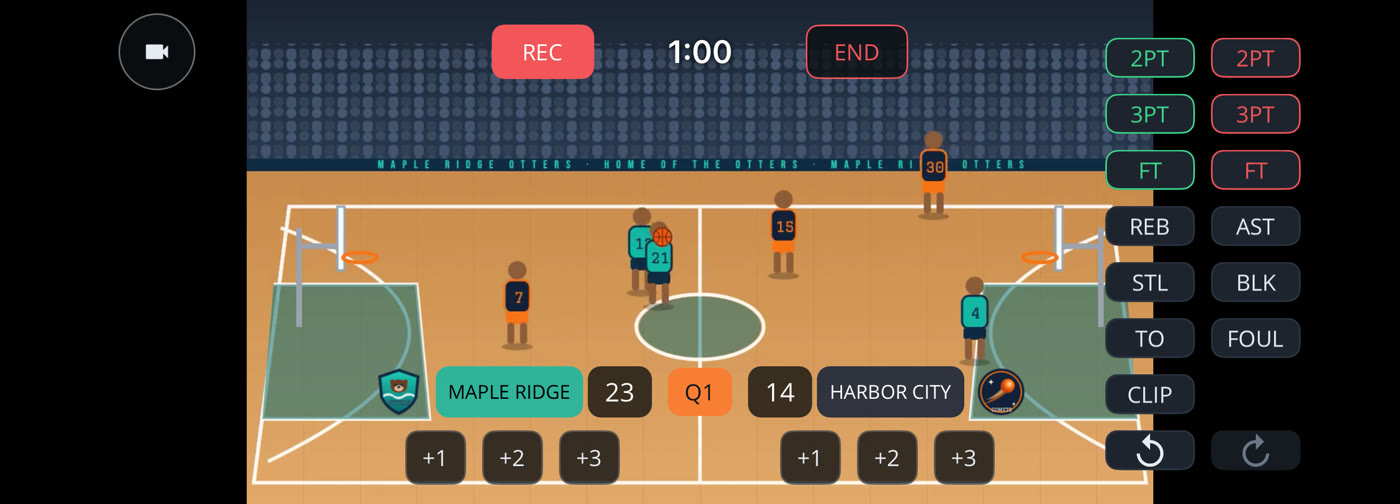
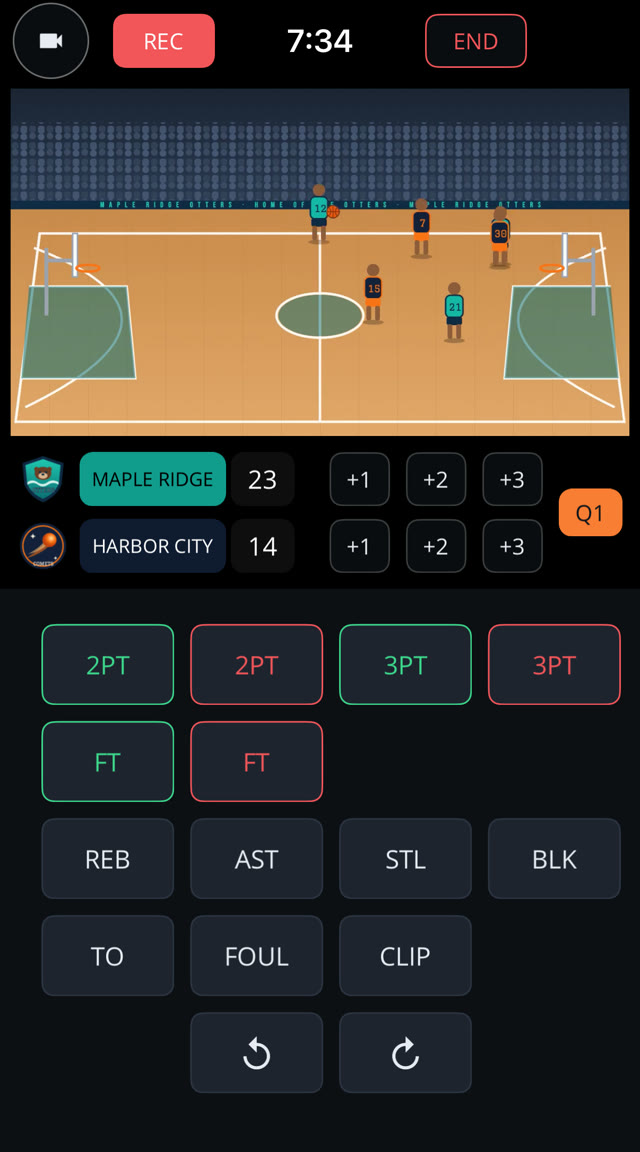
 OTTERS 23 · Q1 · 14 COMETS

 PUMAS 49 · FINAL · 58 OTTERS
 HAWKS 60 · FINAL · 63 OTTERS
 LYNX 47 · FINAL · 52 OTTERS
 ROCKETS 51 · FINAL · 44 OTTERS
Three ways to play it.
Record Video
Film with this phone or tablet's own camera and tap stats on the same screen. That's the whole setup.
Stats Only
No video, just the numbers. Tap stats from the bleachers and type the final score at the buzzer.
Receive Video
A camera like the XbotGo, or a second phone running PlayMark, streams the game to you. You tap stats; PlayMark records it all.
From tip-off to highlight reel.
Receive video from an XbotGo, or any RTMP camera
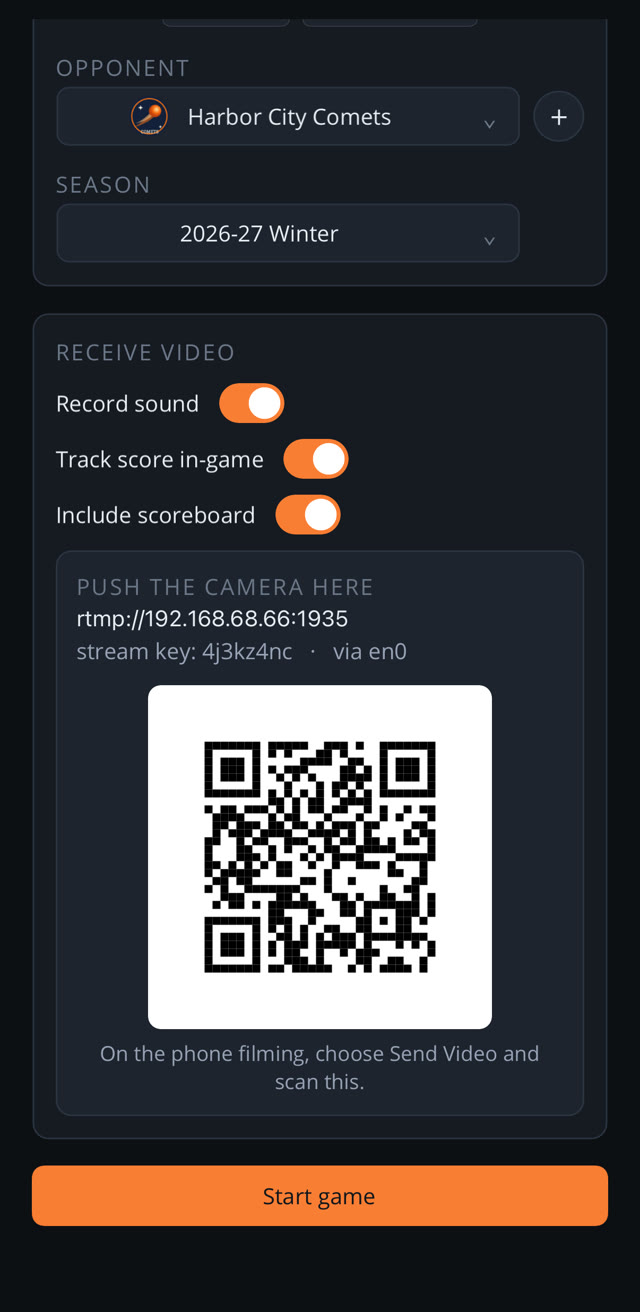
PlayMark turns your phone into the recorder. Point an auto-tracking camera like the XbotGo, or anything that streams RTMP or RTSP, at the address on screen and the game shows up live in PlayMark while you keep the stats.
- The address and stream key are right on the New Game screen. No accounts, no cloud.
- Your phone records the game. Nothing goes up to the internet.
- Two PlayMarks? The filming phone just scans the code.
Record your own video, and tap stats as you watch
Prop the phone up, hit Start Game, and tap 2PT, REB or STL the moment it happens. Tap a made shot and the points go straight onto the scoreboard, which is burned right into the video.
- Basketball, soccer, hockey, volleyball, baseball and softball.
- Made or missed, every shot counts toward the shooting percentages.
- Keep the game score as you go: a quick tap adds points for either team, and the scoreboard on the video follows along.
Every stat you care about becomes a clip
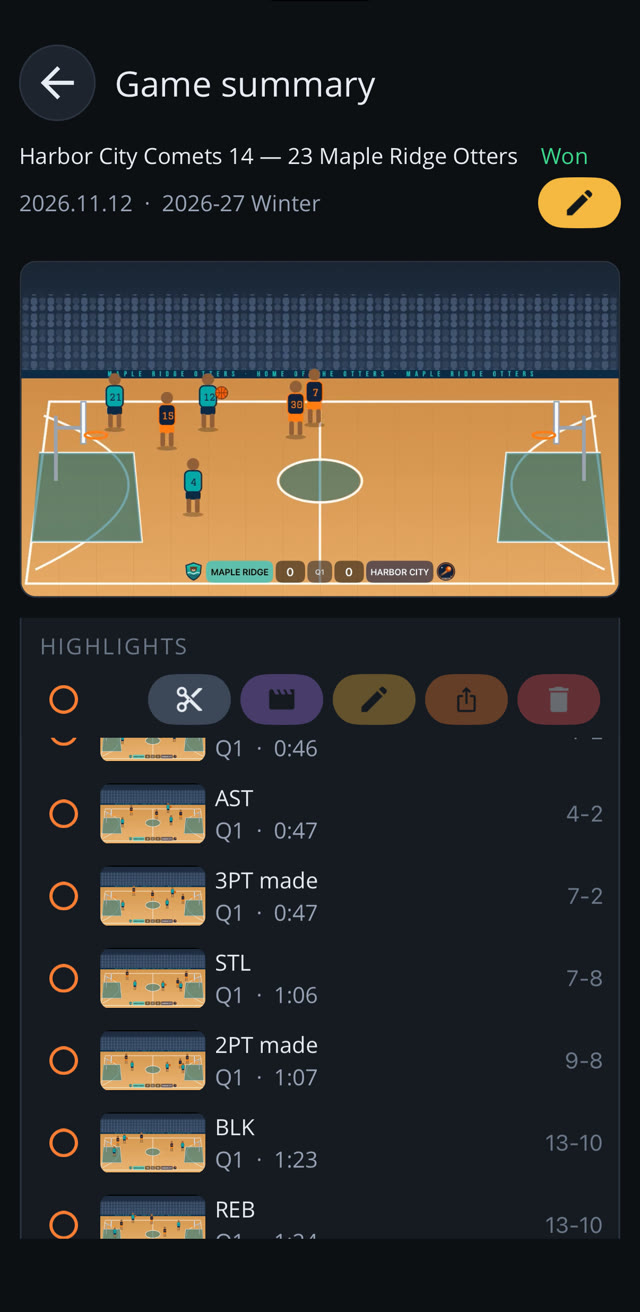
You're the one watching the game, so you call the plays. Choose the stats you care about, and each time you tap one PlayMark marks that moment in the recording. After the game it cuts each marked play from a few seconds before your tap to just after, ready to watch, trim, share or turn into a reel. Saw something great that isn't a stat? Hit the CLIP button.
- No AI guessing at what happened: every clip is a moment someone tapped.
- Missed one live? Clip Highlights lets you scrub the recording and tap it in afterwards.
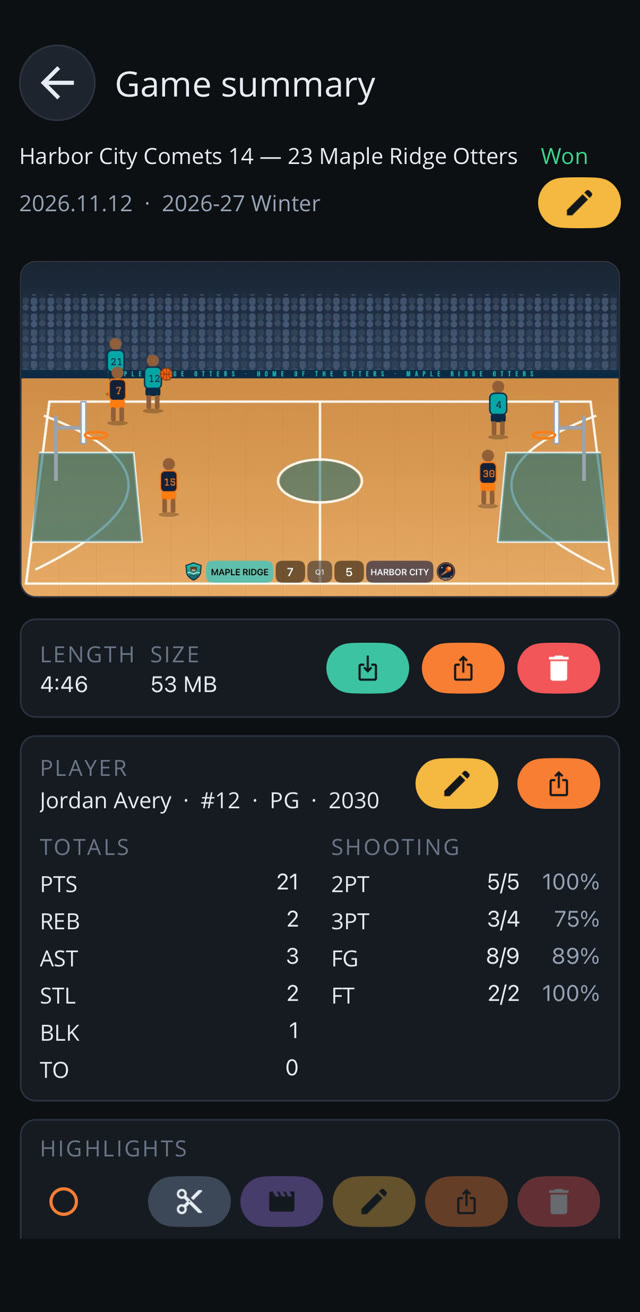
The summary is ready at the buzzer
Your player's totals and percentages for their sport, and the final score, laid out the moment you end the game. Spot a wrong tap? Fix it in a second.
The full game video comes with the score burned in and a splash intro at the start.
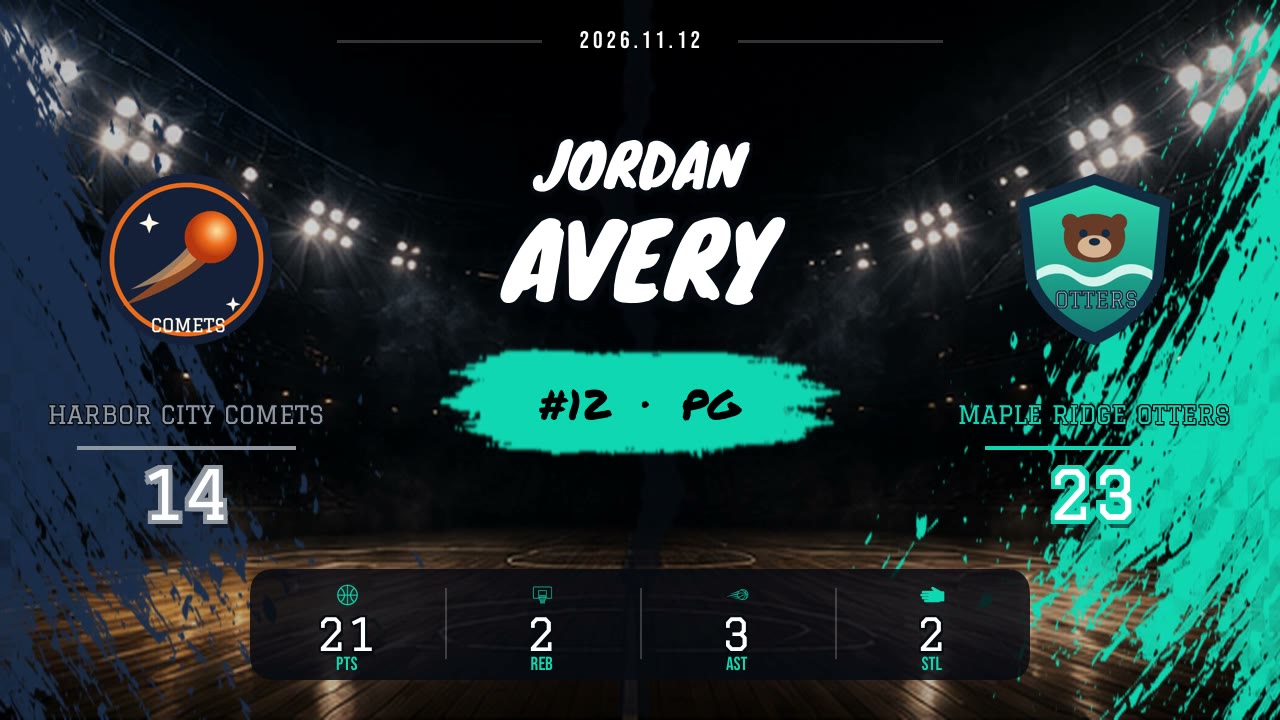
Highlight reels with a splash intro
Tick the plays you love, tap the reel button, and PlayMark builds a reel that opens on a big-game title card for your player: their name and number, both teams' logos and colors thrown across an arena, and their stats from the game. Then it cuts straight from play to play.
- Pick up to four stats for the card, and show or hide the score.
- Make as many reels as you like from one game.
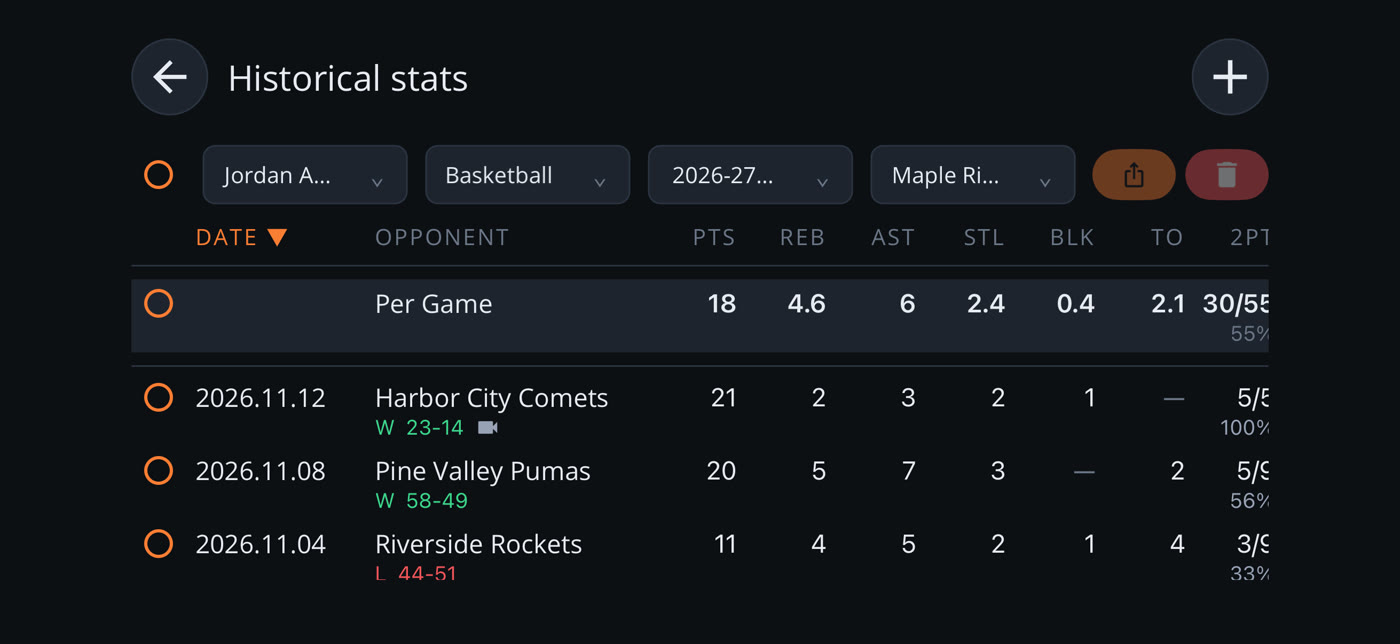
Historical stats, a season at a time
Every game lands in a season. Pick the player, sport, season and team, and the table shows the per-game averages on top, every game under them and the totals at the foot. It's ready for the end-of-season banquet, the recruiting email or settling a debate in the car.
- Tick games to export their stats as a spreadsheet, a PDF or text.
- Typing up an old scorebook? Add a game takes stats without any video.
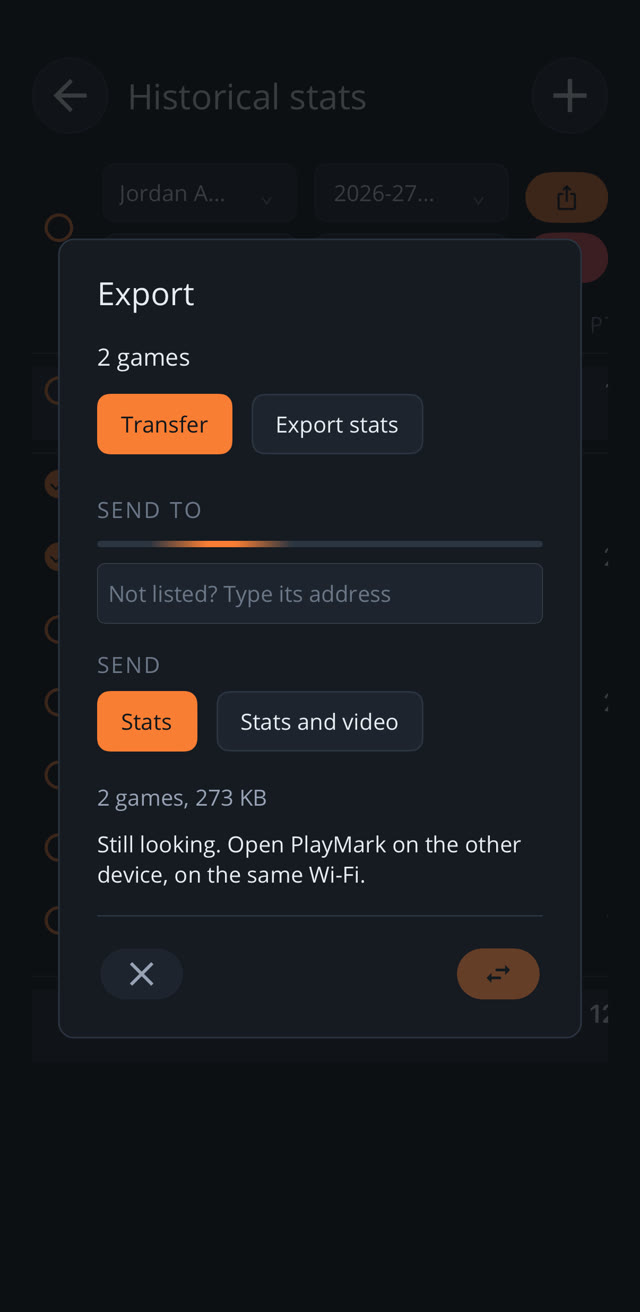
Transfer games between PlayMarks
Film on the phone, keep the archive on the Mac or PC. In Historical stats, tick the games, tap Export and choose Transfer. Any device on the same Wi-Fi with PlayMark open shows up in the list. Pick it, choose Stats or Stats and video, and send.
The other device asks Allow or Deny on whatever screen it's on, and nothing passes through anyone's server. If it already has a game, it keeps its copy and takes only the video it's missing, unless you tick Replace stats or Replace video.
Export to social media
Send a single play, a reel, the full game or a stats picture wherever it needs to go. Post to your own YouTube channel or Instagram, drop it in the group chat, mail it to Grandma, or save it to Photos.
Teammates: share the filming, share the clips
Two families at the same game, but only one of them filmed? The other parent picks their kid's plays and sends a clip request, by text message or by scanning a QR code. The parent who filmed opens it, and PlayMark cuts those same moments, by the time of each tap, out of their recording and sends them back. They land right against the matching plays.
Works between iPhone and Android, by AirDrop, Messages or anything else that sends a file. No accounts, no network needed.
Whatever they play.
Basketball
2PT, 3PT, FT, REB, AST, STL, BLK, TO, FOUL
Soccer
Goals, shots, assists, fouls, keeper saves
Hockey
Goals, shots, assists, penalties, goalie saves
Volleyball
Kills, errors, aces, assists, blocks, digs
Baseball
Hits, HR, RBI, BB, SO with AVG, pitching with ERA
Softball
Batting, pitching and fielding, same as baseball
Try three games on us.
PlayMark is free to download. Your first three games are free too. After that, a subscription, monthly or yearly, keeps new games coming.
games to start
- Recorded, received, stats-only or typed in: every kind of game counts
- Every feature, no watermarks, no ads
- Games moved over with Transfer never count
Then subscribe monthly or yearly
Keep creating new games. Switch plans or cancel any time in your App Store settings.
Always free, subscribed or not
- Every past game, stat and season average
- Clips, reels, export and sharing
- Transfer to your Mac or PC
- Replying to a teammate's clip request
Game-day setup.
Filming with one phone, or just keeping stats? Open PlayMark, choose Record Video or Stats Only, and you're done: no network, no second device.
One device
- Record Video: the phone or tablet films with its own camera while you tap stats.
- Stats Only: no video at all; just tap along.
- Nothing else to set up.
Two devices: a camera streams to PlayMark
- XbotGo + PlayMark: a phone in the XbotGo mount runs the XbotGo app and streams to a second phone or tablet running PlayMark in Receive Video.
- or
- PlayMark + PlayMark: one phone on a tripod runs PlayMark in Send Video; the other runs PlayMark in Receive Video.
- Both devices need to be on the same network.
Get both devices on the same network
The camera streams straight to the PlayMark device, over a local network. Gym Wi-Fi usually won't work: guest networks block devices from talking to each other. Bring your own network instead.
Option A: a phone's hotspot
- Turn on Personal Hotspot on one of the two phones.
- Join that hotspot's Wi-Fi from the other phone.
- Keep the two phones fairly close, within about 30 feet, for a steady connection.
Option B: a portable hotspot
- A dedicated travel router, such as the Netgear Nighthawk M1, gives a stronger, steadier network for a whole game.
- Join both phones to its Wi-Fi.
- Place it between the camera and the bleachers.
Open Receive Video on the PlayMark device
On the phone or tablet that's keeping stats, open PlayMark and choose Receive Video. Pick your player, the teams and the season.
Scroll down to PUSH THE CAMERA HERE. You'll need what it shows:
- The server address, like rtmp://192.168.1.20:1935
- The stream key beside it
- Or the QR code, if the camera is another PlayMark
Leave this screen open while you set up the camera.
Point the camera at PlayMark
In the XbotGo app
Connect the app to your XbotGo and set up the game as usual, until you reach its recording screen. Then:
-
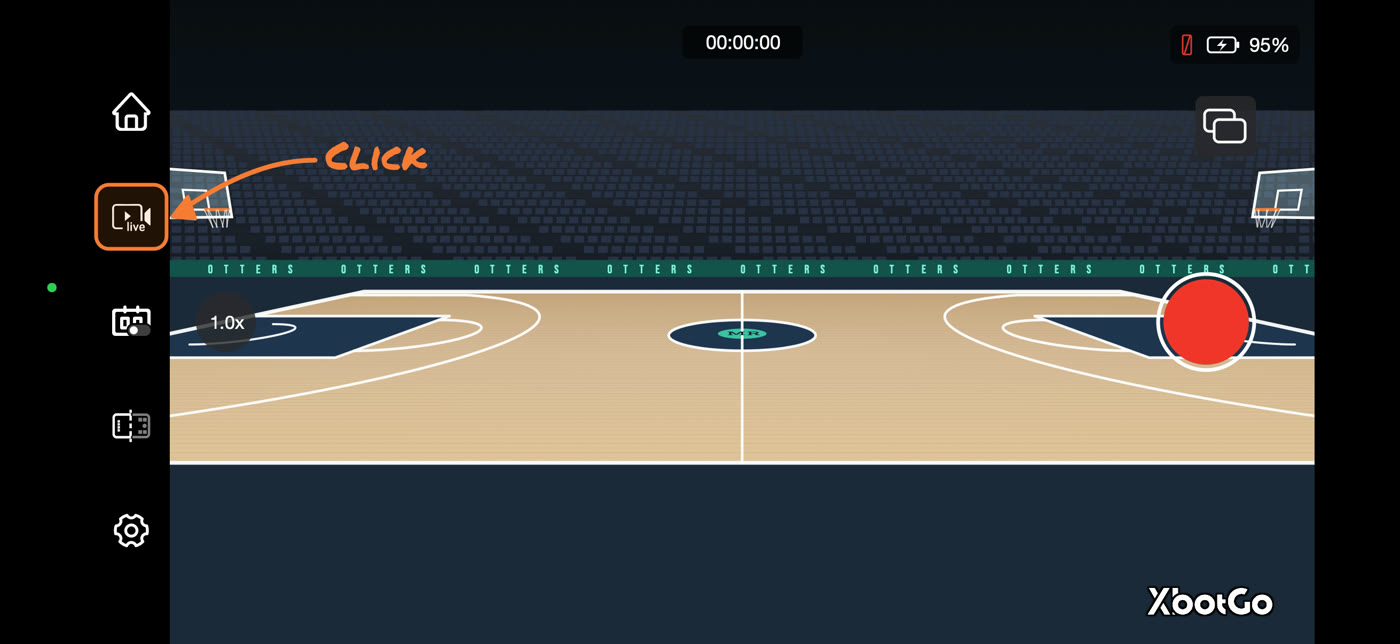
Tap Live, the camera marked "live" on the left. Sign in to your XbotGo account if it asks.
-
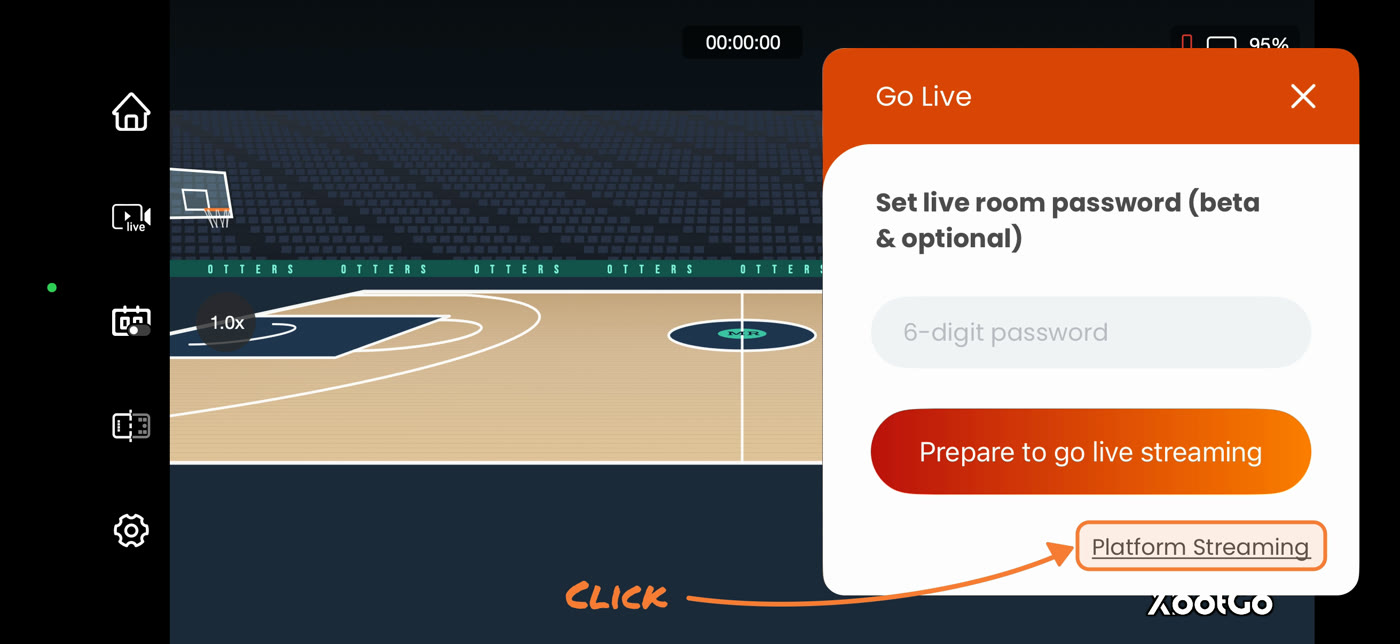
In Go Live, tap Platform Streaming at the bottom right.
-
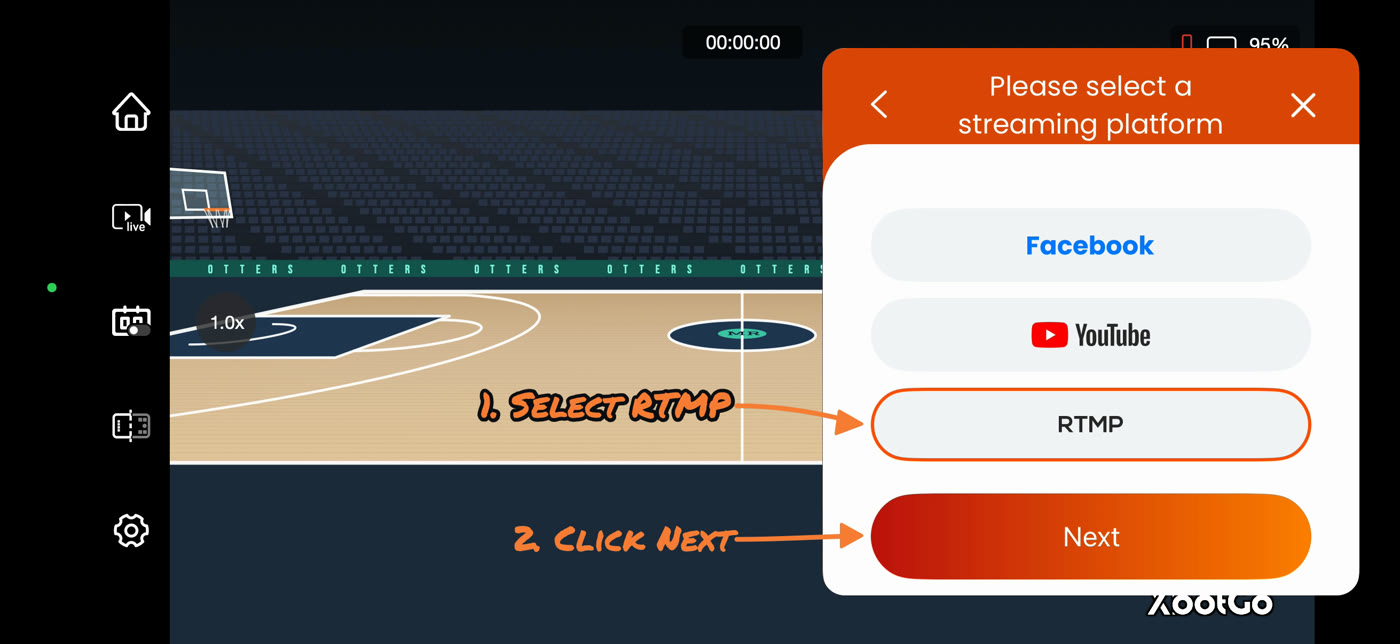
Choose RTMP, then tap Next.
-
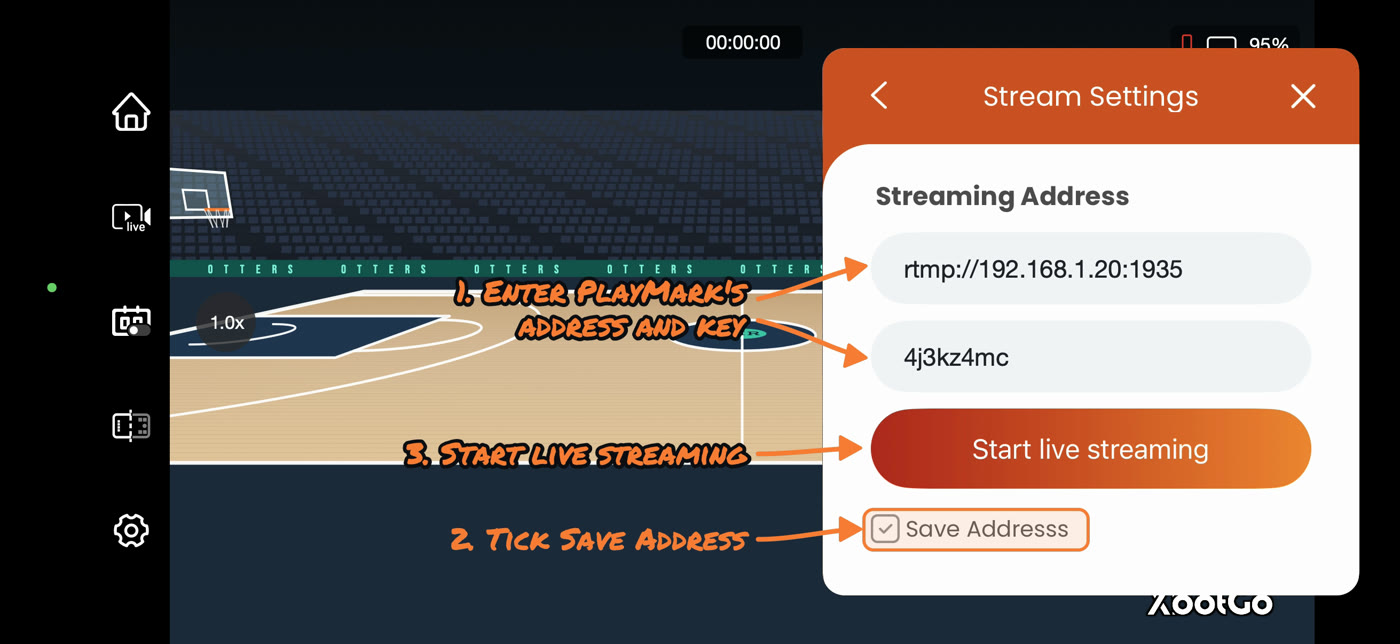
Type the address and stream key PlayMark shows. Tick Save Address, since they usually stay the same from game to game, then tap Start live streaming. Within a few seconds the picture appears in PlayMark.
-
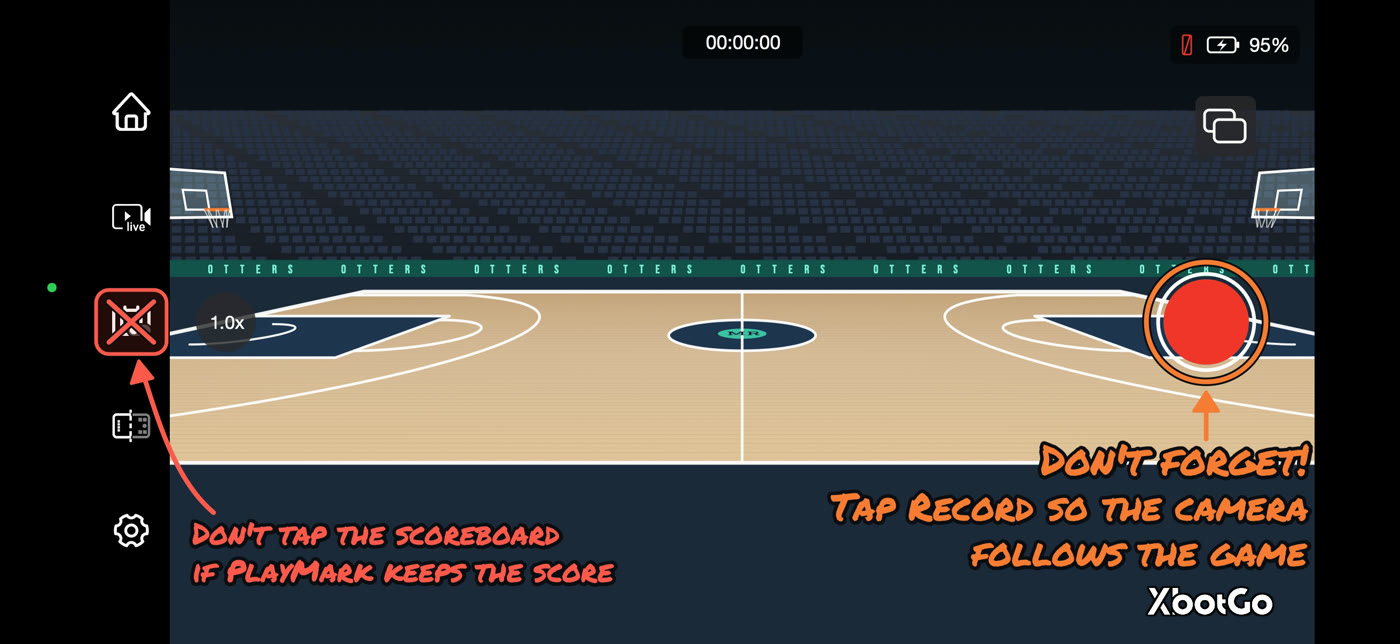
Back on the recording screen, tap the red Record button so the XbotGo starts following the game.
Leave the scoreboard button (under Live) alone if PlayMark keeps the score: PlayMark puts its own scoreboard on the video, and the two would sit on top of each other.
On the filming phone
- Open PlayMark and choose Send Video.
- Scan the QR code on the stats phone, or type the address.
- Set the phone on its tripod and tap Start sending. Its screen dims to save battery; it keeps sending.
Send Video runs on phones, tablets and a Mac with a camera.
Start the game
Tap Start game. The live picture appears with the scoreboard. When warm-ups are over, tap Start Game on the video: recording and the clock start together. Then just tap stats as plays happen. At the final buzzer tap END, and the summary, clips and burned-in video are waiting for you.
Picture not showing up? See camera troubleshooting on the support page.